

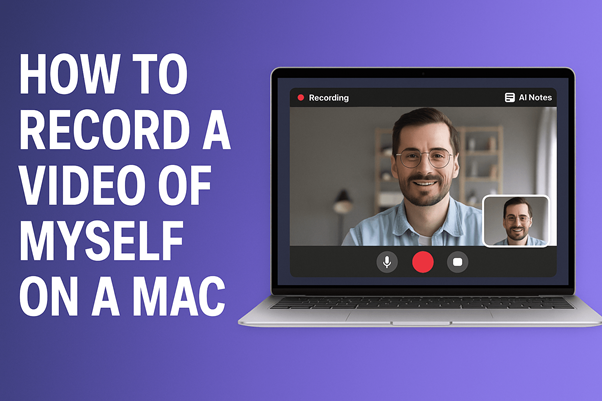
Recording yourself on a Mac should be simple. Whether you’re preparing a presentation, creating YouTube content, recording an online lesson, or capturing a quick demo for your team, you need a tool that works without hassle. Unfortunately, many Mac users run into the same problems: complicated apps, poor audio capture, and clunky editing workflows.
That’s where ShotVu comes in. This browser-based recorder makes it effortless to Record video on a MacBook, capturing your screen, webcam, and audio in high definition. No downloads. No setup nightmares. Just a fast, easy, professional recording experience.
In this guide, you’ll learn step by step how to record a video of yourself on a Mac, how to optimize quality for professional results, and how to use advanced features like AI Notes and AI Eyes on Camera to save time and look natural on screen.
Table of Contents
Why Record Video on a MacBook?
MacBooks are a favorite among content creators, students, and professionals because of their performance and design. Recording yourself on a Mac unlocks endless possibilities:
Video presentations for school or work
Tutorials and training content
YouTube videos and vlogs
Online courses and lessons
Product demos or pitches
Screen + face recordings for meetings or feedback
Instead of juggling multiple apps, you can use ShotVu directly in your browser to record professional-grade videos in minutes.
The Challenges of Recording Yourself on a Mac
Before we jump into the solution, let’s acknowledge the common frustrations Mac users face:
QuickTime limitations – Apple’s built-in QuickTime Player only Records screen or mic. It cannot capture system audio without extra plug-ins.
Storage issues – Native video files can be large and take up disk space.
Complex software – Tools like OBS Studio are powerful but require steep setup and configuration.
Editing delays – Most tools force you to export, save, then upload — wasting time.
ShotVu solves all of these pain points by being web-based, lightweight, and instant.
Why ShotVu is the Best Way to Record Yourself on a MacBook
Here’s what makes ShotVu stand out:
Browser-based: Works directly in Safari or Chrome — no installation.
Webcam recording: Use your built-in MacBook camera or an external webcam.
Screen recording: Capture your full desktop or a specific window.
System audio + mic: Record both what you hear and what you say.
AI Eyes on Camera: Look like you’re making natural eye contact, even when reading notes.
Built-in teleprompter: Upload or paste your script and follow it smoothly while recording.
Instant sharing: Stop recording → get a link → share instantly.
Download MP4: Export your video for YouTube, Vimeo, or storage.
AI Notes: Auto-generate notes, summaries, or scripts from your recordings.
This combination of speed, simplicity, and AI-powered productivity tools makes ShotVu the perfect option for anyone who wants fast, easy, pro-quality MacBook video recording.
Step-by-Step: How to Record a Video of Yourself on a Mac
Let’s walk through the exact process.
Step 1: Open ShotVu in Your Browser
Simply launch Chrome or Safari and go to ShotVu. No downloads or installations are needed.
Step 2: Choose Your Recording Mode
You’ll see options:
Screen only
Webcam only
Screen + Webcam (best for tutorials or presentations)
For recording yourself, select Webcam only or Screen + Webcam if you also want to display slides or content.
Step 3: Enable Audio
Check the boxes for:
Microphone (to narrate or present)
System Audio (to capture sounds playing on your Mac, such as music or meeting audio)
Step 4: Activate AI Features (Optional but Powerful)
AI Eyes on Camera: Helps you maintain direct eye contact even if you’re glancing at notes or slides.
Teleprompter: Upload your script so it scrolls smoothly while you record.
AI Notes: After recording, generate instant notes or summaries for repurposing.
Step 5: Start Recording
Hit “Start Recording” and deliver your content. Adjust your webcam bubble position if using PiP (picture-in-picture).
Step 6: Stop and Share Instantly
Once finished, click stop. ShotVu immediately processes your video and gives you:
A shareable link
An MP4 download option
No waiting for rendering or uploading.
Optimizing Video Quality on Your MacBook
ShotVu takes care of most settings, but here are a few tips:
Lighting: Face a window or use a ring light for natural brightness.
Background: Keep it clean and distraction-free, or blur using a virtual background.
Resolution: Stick to 1080p HD — perfect balance of quality and file size.
Audio clarity: Test your mic using ShotVu’s Mic Test tool before recording.
Using AI Notes to Save Time
Recording is just one part of content creation. ShotVu’s AI Notes feature helps turn recordings into multiple assets:
Scripts: Use notes as a base for refining future videos.
Summaries: Share quick bullet points with your team or audience.
Chapters: Create timestamps for YouTube video chapters.
Repurposed content: Transform notes into blog posts, social media updates, or training docs.
Instead of transcribing manually, AI Notes handles it in seconds.
AI Eyes on Camera: Look Confident, Not Distracted
One of the biggest struggles when recording yourself on Mac is maintaining eye contact with the camera. It’s natural to glance at your notes, but this can make you appear distracted.
ShotVu’s AI Eyes on Camera corrects your gaze so you appear to look directly at your audience, creating a more personal and professional connection. This is especially powerful for:
Online courses
Sales presentations
YouTube tutorials
Recorded pitches
Even if you’re reading from the teleprompter, the AI ensures you appear confident and present.
Practical Use Cases for Professionals
Record training videos, onboarding content, or client updates.
Add AI Notes for meeting recaps.
For Teachers
Create lesson videos, screen-share presentations, and generate study notes automatically.
For YouTubers
Record gameplay, tutorials, or product reviews.
Use webcam + screen for engaging commentary.
For Remote Teams
Send async video updates.
Share quick screen demos with a link.
For Personal Use
Record video diaries, coaching sessions, or practice public speaking.
FAQs
Q: Can I record both screen and webcam on Mac?
Yes, ShotVu allows simultaneous screen + webcam recording with a draggable webcam bubble.
Q: Will ShotVu capture my MacBook’s system audio?
Yes, unlike QuickTime, ShotVu records both microphone and system audio directly.
Q: Do I need to install software?
No, everything runs in your browser.
Q: Can I save recordings offline?
Yes, download them instantly as MP4 files.
Q: What’s the difference between free and paid plans?
The free plan offers limited recordings, while the paid plan unlocks unlimited recording length, AI features, and pro tools.
Final Thoughts
If you’ve ever struggled with clunky apps, poor audio, or endless setup, it’s time to switch to a simpler workflow. With ShotVu, recording yourself on a MacBook is:
Fast — launch in seconds, no installation.
Easy — intuitive interface, instant sharing.
Pro-quality — HD video, clear audio, advanced AI tools.
Whether you’re a YouTuber, professional, teacher, or student, ShotVu empowers you to record your webcam, screen, and audio effortlessly. Features like AI Notes and AI Eyes on Camera take your content to the next level, saving time and helping you look your best.
So next time you ask, “How do I record a video of myself on a Mac?” — remember that the answer is simple: open ShotVu, record, and share.


